
Overview

The Billing & Licensing module under Global Settings provides a centralized interface for managing your organization’s subscription, license information, and resource quotas within Axoma. This section enables Super Admins or authorized personnel to:
  • View and manage the current plan details.
  • Track license validity and renewal status.
  • Monitor system limits like maximum users, agents, documents, and more.
  • Upload new or updated license files.
  • Access complete license history for audit and compliance purposes.
Global Settings → Organization → Billing & Licensing
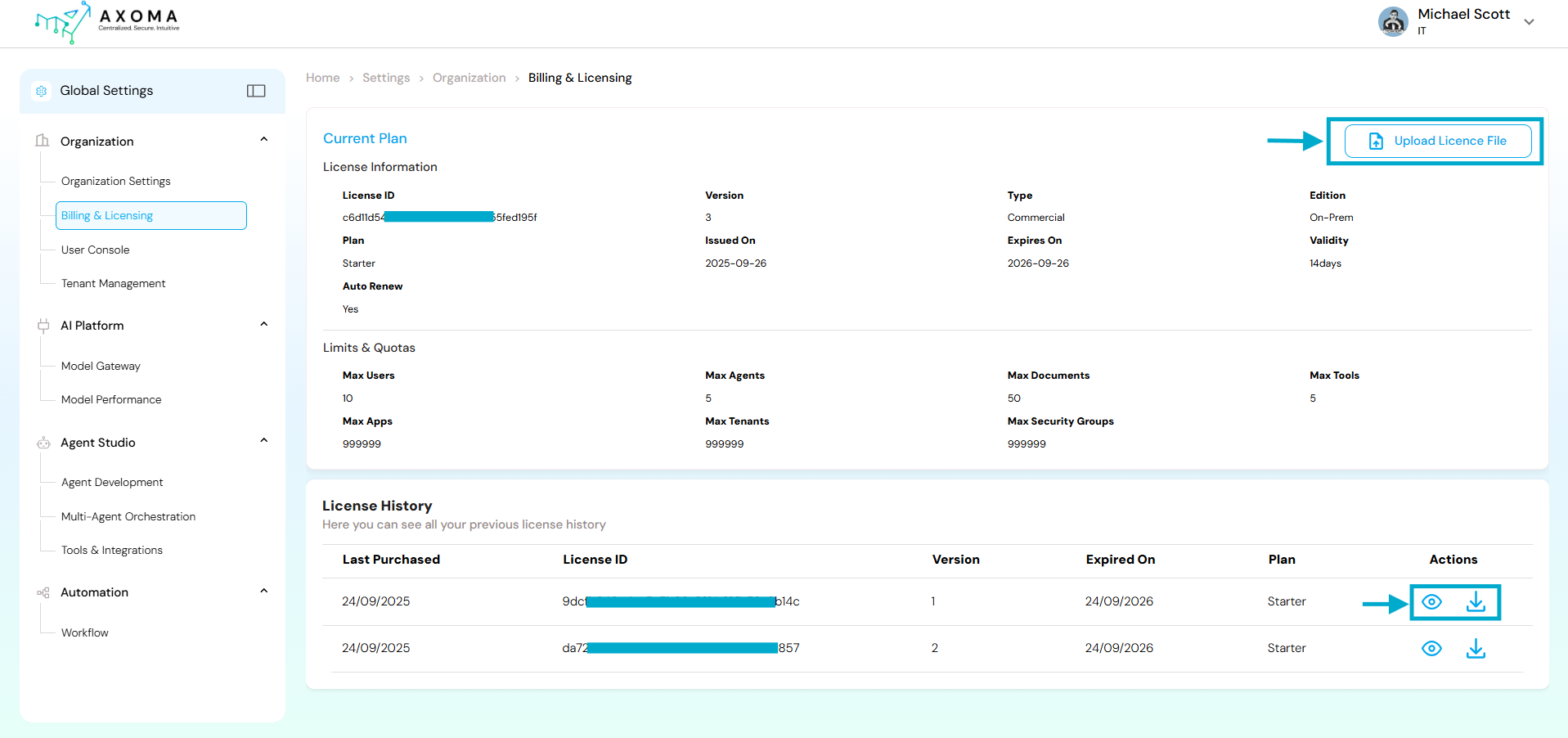
Axoma global settings

Sections

Current Plan & License Information

This section summarizes the active license applied to the organization.
Field NameDescriptionPurpose
License IDA unique, system-generated identifier for the active license (masked for security: c6d****d195f).Used internally to validate the organization’s active license and link it with the backend license management system.
VersionIndicates the release version of the license (e.g., 3).Useful during license renewals or migrations, ensuring compatibility with the current Axoma version.
Typepecifies the type of license e.g., Commercial, Enterprise, or Trial.Determines the organization’s entitlement to premium or enterprise features.
EditionDescribes the deployment type such as On-Prem, Cloud, or Hybrid.Helps align licensing with infrastructure preferences.
PlanDefines the subscription level (e.g., Starter, Professional, Enterprise).Determines access levels, quota limits, and feature availability.
Auto renewIndicates whether the license will automatically renew upon expiry.Ensures service continuity and prevents accidental downtime.
Issued On / Expires OnThe activation and expiration dates of the current license.Displays the validity window for administrators to plan timely renewals.
ValidityDuration of the license validity (e.g., 14 days remaining).Quick reference for renewal alerts and upcoming expiration reminders.

Limits & Quotas

This section defines resource usage limits enforced by the current license plan. Each plan (Starter, Professional, Enterprise) comes with specific capacity thresholds to manage fair usage.
Field NameDescriptionPurpose
Max UsersThe maximum number of users allowed under the current plan (e.g., 10).Controls how many users can be onboarded under the same organization.
Max AgentsMaximum number of agents that can be created in Agent Studio (e.g., 5).Helps maintain scalability within licensed boundaries.
Max ToolsDefines the total number of third-party or internal tools that can be integrated (e.g., 5).Encourages efficient integration management under specific plans.
Max DocumentsThe total number of documents that can be uploaded or processed (e.g., 50).Prevents storage or data overuse beyond licensed capacity.
Max AppsThe total number of applications that can be deployed or connected (e.g., 999).Used for monitoring integration scalability.
Max TenantsMaximum tenant accounts that can be managed under the same organization (e.g., 999).Relevant for multi-tenant architectures and enterprise setups.
Max Security GroupsThe maximum number of security groups that can be created for role-based access control.Ensures structured, compliant permission management.

Upload License File

This button allows the Super Admin to upload a new or updated license file (typically provided by Axoma Support or Sales Team). Uploading a license file updates the system to reflect the new plan, version, or extended validity period.

License History

Field NameDescriptionPurpose
Last PurchasedThe date when the license was purchased or renewed.Date tracking
License IDUnique ID of each license record (masked: 9dc****8b14c).Used internally for reference and audit logs.
VersionThe version number of the respective license.Helps identify incremental updates (v1, v2, etc.).
Expired OnThe expiration date of each license.Indicates validity period and helps track renewal cycles.
PlanSpecifies the plan type (e.g., Starter).Reflects the feature set applicable during that license period.
ActionsIncludes icons for View (👁️) and Download (⬇️).Allows the admin to review or store a local copy of past licenses.

Best Practices

  • Always keep the latest license file backed up securely.
  • Verify the Auto Renew status periodically to prevent unexpected service interruptions.
  • Use the License History for audit trails or contract renewals.
  • Only Super Admins should upload or modify license files to maintain license integrity.